
Connect your AI agent to every database in PromptQuery
PromptQuery ships with a built-in Model Context Protocol (MCP) server. While the desktop app is running, any MCP-compatible AI agent can read your live database connections, run queries, and generate reports in your projects — all behind your local auth token.
No plugin needed. Agents talk to the MCP server directly over SSE — there is nothing to install inside Claude Code, Cursor, Codex, Copilot, Antigravity, or OpenCode. PromptQuery auto-detects supported agents on launch and writes the entry into their config for you.
Open the MCP indicator at the top of the PromptQuery window to see your local SSE URL, auth token, and the list of agents that were auto-registered on this machine.
Getting Started
Launch PromptQuery once — it will detect any installed agent and inject the entry into the right config file. If you prefer to wire an agent up by hand, the SSE URL and bearer token are visible in the MCP popover.
Common values
http://localhost:7549/sseAuthorization: Bearer <token>promptqueryClaude Code
Auto-registered to ~/.claude.json. To wire it manually:
json · ~/.claude.json{
  "mcpServers": {
    "promptquery": {
      "type": "sse",
      "url": "http://localhost:7549/sse",
      "headers": { "Authorization": "Bearer <your-token>" }
    }
  }
}
Cursor
Auto-registered to ~/.cursor/mcp.json.
json · ~/.cursor/mcp.json{
  "mcpServers": {
    "promptquery": {
      "url": "http://localhost:7549/sse",
      "headers": { "Authorization": "Bearer <your-token>" }
    }
  }
}
Windsurf
Auto-registered to ~/.codeium/windsurf/mcp_config.json.
json · ~/.codeium/windsurf/mcp_config.json{
  "mcpServers": {
    "promptquery": {
      "serverType": "sse",
      "url": "http://localhost:7549/sse",
      "apiKey": "<your-token>"
    }
  }
}
Codex
OpenAI Codex CLI uses TOML at ~/.codex/config.toml. PromptQuery writes a stdio↔SSE bridge entry so it works on every Codex version:
toml · ~/.codex/config.toml[mcp_servers.promptquery]
command = "npx"
args = ["-y", "mcp-remote", "http://localhost:7549/sse", "--header", "Authorization: Bearer <your-token>"]
GitHub Copilot
Copilot Chat in VS Code reads MCP servers from the User mcp.json:
- macOS
~/Library/Application Support/Code/User/mcp.json - Linux
~/.config/Code/User/mcp.json - Windows
%APPDATA%\Code\User\mcp.json
json · mcp.json{
  "servers": {
    "promptquery": {
      "type": "sse",
      "url": "http://localhost:7549/sse",
      "headers": { "Authorization": "Bearer <your-token>" }
    }
  }
}
Antigravity
Auto-registered to ~/.antigravity/mcp.json.
json · ~/.antigravity/mcp.json{
  "mcpServers": {
    "promptquery": {
      "type": "sse",
      "url": "http://localhost:7549/sse",
      "headers": { "Authorization": "Bearer <your-token>" }
    }
  }
}
OpenCode
Auto-registered to ~/.config/opencode/opencode.json.
json · opencode.json{
  "mcp": {
    "promptquery": {
      "type": "remote",
      "url": "http://localhost:7549/sse",
      "enabled": true,
      "headers": { "Authorization": "Bearer <your-token>" }
    }
  }
}
Verifying the connection
Once your agent has restarted with the MCP entry, ask it the following:
print hello world in PromptQuery
The agent should call PromptQuery's create_text_panel tool and a new tab will open in the desktop app showing a centered hello world message. If you see the tab, your agent is connected.
If nothing happens
- Make sure PromptQuery is running — the MCP server only runs while the app is open.
- Open the MCP indicator in the top bar and confirm the agent is listed under Auto-registered with.
- Restart the agent so it re-reads its MCP config file.
- Verify port
7549isn't blocked locally.
Tools & capabilities
The MCP server exposes the tools below. Your agent picks the right ones automatically based on what you ask — schema introspection, data exploration, report writing, or publishing.
list_connectionsList active database connections in PromptQuery.
list_saved_connectionsList saved (inactive) connections.
connect_to_saved_connectionActivate a saved connection by name.
open_connection_dialogOpen the New Connection dialog or jump straight to a sample database.
get_databasesReturn databases / schemas / owners on a connection.
get_tablesList tables and views in a database or schema.
get_table_schemaInspect a table or view — columns, types, indexes.
get_routinesList stored functions, procedures, and triggers.
execute_queryRead-only SELECT — returns JSON for the agent to reason over.
run_query_in_tabRun any SQL inside a new query tab in the app — results visible to the user.
open_objectOpen a table, view, or schema panel as a tab.
apply_schema_suggestionsAdd a primary key or fix column types on imported data.
create_text_panelDisplay a self-contained HTML report inside PromptQuery.
create_diagramRender an interactive chart / dashboard from any CDN charting lib.
export_query_resultsSave query results to the workspace as CSV / JSON / Markdown.
write_fileWrite any text artifact (SQL, reports, data) into the project workspace.
read_fileRead a previously written workspace file back into context.
list_workspaceList files in a workspace, or list all workspaces.
confirm_workspaceAsk the user to choose between an existing or new project.
publish_to_webPublish a workspace report or diagram to a shareable URL.
get_annotationsRead saved schema annotations for a connection.
request_clarificationAsk the user a focused schema question — answer is saved as an annotation.
check_authConfirm the user is signed in to PromptQuery.
Security & Permissions
PromptQuery is designed with a deny-by-default security model. Every write operation an AI agent attempts must be explicitly approved by you — there is no prompt an agent can craft to bypass the gate.
Read-only by default. SELECT, EXPLAIN, and SHOW queries are always permitted. All other statement types — INSERT, UPDATE, DELETE, and DDL — are blocked until you grant permission per-connection.
Credential Security
Database credentials shared across a team are encrypted at rest using Supabase Vault — a server-side encryption layer powered by pgsodium. Host addresses, usernames, passwords, and SSH keys never appear in plaintext in the database.
How it works
- When you save a connection, sensitive fields (host, username, password, SSL keys, SSH credentials) are extracted and stored in Vault
- The connection config in the database contains only a placeholder — the real secret is encrypted by a root key managed by Supabase infrastructure
- When a team member loads connections, the backend decrypts secrets from Vault and returns them over HTTPS
- The root encryption key is never stored in the database — a database dump alone cannot reveal credentials
Credential flow
What this protects against
Personal connections (not shared with a team) are encrypted client-side using AES-256-GCM with a key derived from your user identity — they never leave your device unencrypted.
AI Query Permissions
When an AI agent attempts to run a write query via MCP, PromptQuery intercepts the request and shows the AI Query Permissions dialog. You can grant or deny each operation type individually:
INSERT— add new rows to tablesUPDATE— modify existing rowsDELETE— remove rows from tablesDDL— schema and admin operations (CREATE, DROP, ALTER, BACKUP, RESTORE)
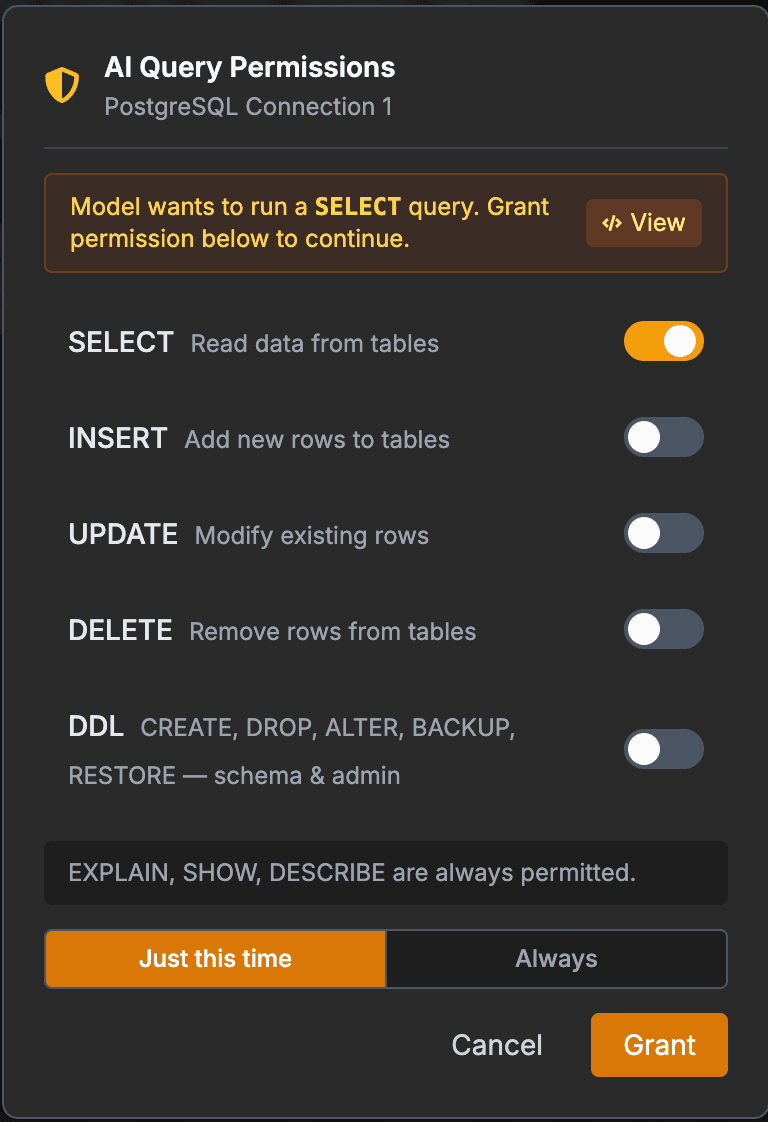
You can choose to grant permission just this time or always for that connection. Persistent permissions are saved locally and can be changed at any time by right-clicking the connection in the sidebar and selecting AI Query Permissions.
Connection Permissions
For team accounts, PromptQuery enforces a separate layer of connection-level permissions that control what each team member can do on shared connections:
Connect— connection is visible in the sidebar; required for all other permissionsSelect— run SELECT queriesUpdate— run UPDATE queriesInsert— run INSERT queriesDelete— run DELETE queriesDDL— CREATE, DROP, ALTER, TRUNCATE — schema changes
If the Connect permission is revoked, all other permissions are automatically disabled and the member cannot access the connection at all. Permissions are checked on every query execution — the team owner is never restricted.
Database-level overrides
Permissions can also be set per-database, overriding the connection-level defaults. This lets you grant read-only access to production while allowing full write access to a staging database on the same connection.
Troubleshooting
Agent doesn't see the server
Restart the agent after PromptQuery has launched at least once. Auto-registration only writes to a config file the first time the app starts on your machine.
Tools fail with "not authenticated"
Sign in to PromptQuery from the avatar menu. Some MCP tools (publishing, AI-permission gates, free-plan quotas) require a logged-in account.
Connection drops after long sessions
SSE connections can be torn down by aggressive idle timers. Re-trigger any PromptQuery tool from your agent and the client will reconnect automatically.
Windows + WSL
If your agent runs inside WSL but PromptQuery runs on Windows, replace localhost in the MCP config with the Windows host address WSL exposes (typically the gateway IP from cat /etc/resolv.conf).